Working with Tickets
Read the AI diagnosis, dig into the raw evidence, and move tickets through your team's workflow.
Reading the AI diagnosis
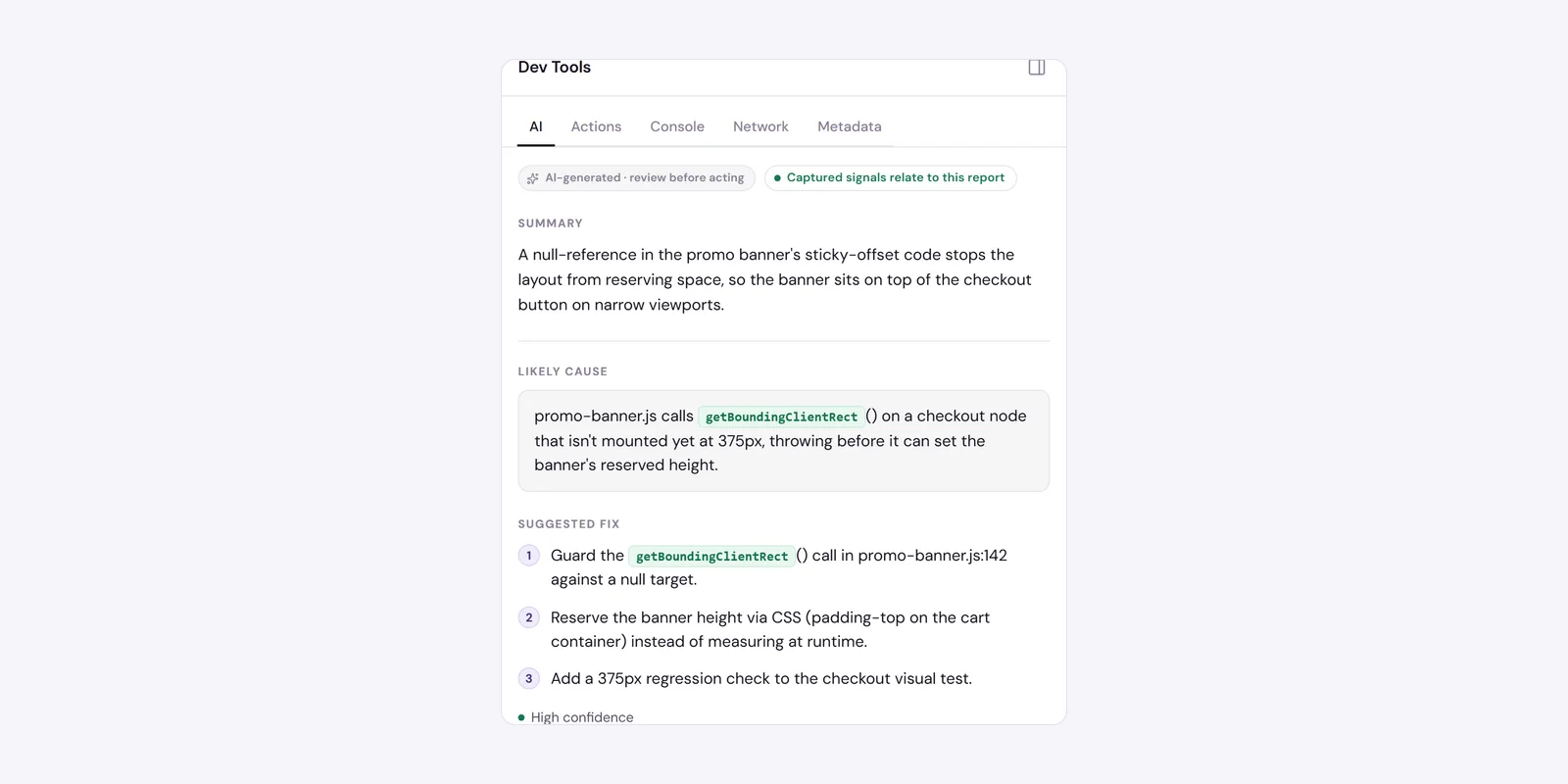
Every ticket gets an automatic diagnosis. Open a ticket and look at the Dev Tools panel (the sparkles icon) — it opens on the AI tab and analyzes the capture on first view.
At the top is a verdict badge, and it's the first thing to read because it tells you how to read everything below it. There are four:
- Captured signals relate to this report(green) — the evidence lines up with what you described. You'll see a Likely cause and a Suggested fix.
- Captured errors appear unrelated(amber) — Annote found errors, but they don't seem connected to your report. You'll get a relatedness assessment and suggested next steps rather than a confident cause.
- Design / UX request — no code fault(gray) — Annote recognized this as a design or wording change, not a bug, so there's nothing technical to diagnose.
- No related capture — defect not ruled out(accent) — and this is the one to read carefully: it does not mean “this isn't a bug.” It means the capture didn't contain anything bearing on what you reported. The issue still stands; the evidence just doesn't point at a cause.
Below the badge you'll read a short summary, the likely cause (or assessment), a numbered suggested-fix list, and a confidence level — High, Moderate, or Low. Everything carries an “AI-generated · review before acting” note, because the AI reasons from captured evidence and can be wrong. Treat it as a fast, well-informed first opinion, not a verdict.
Console, Network & Actions panels
Alongside the AI tab, the Dev Tools panel gives you the raw evidence the diagnosis was built from. Three tabs, each readable on its own.
- Console lists the captured logs, with filters for errors and warnings and expandable rows for detail. If there were no errors or warnings, it says so plainly rather than leaving you guessing.
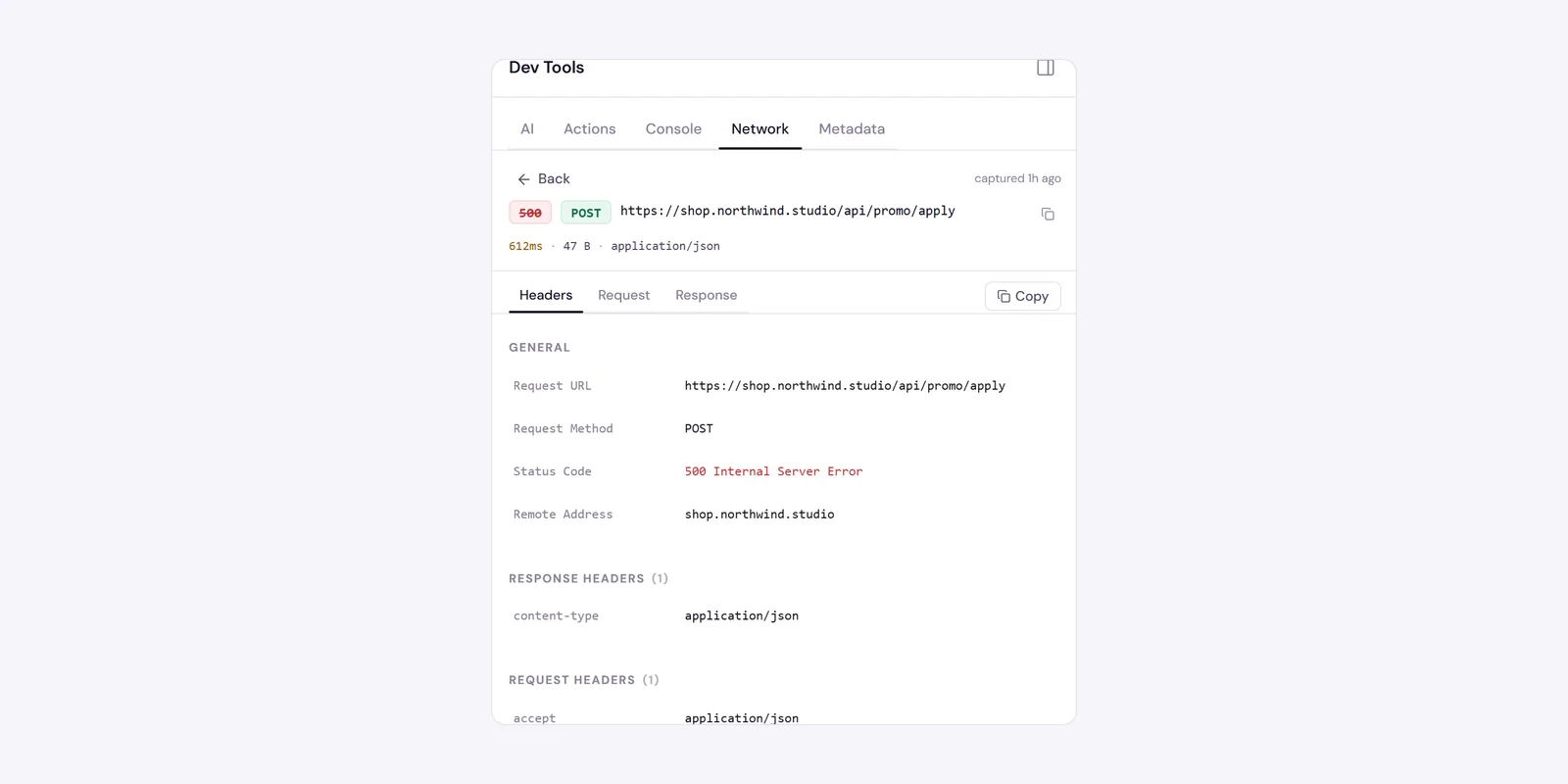
- Network is a familiar request table — status, method, name, timing — with color-coded status codes. Click any row to see the request detail, including the response body, and copy it as cURL to replay the failing call yourself. When failed requests are present, the table auto-filters to show errors first.
- Actionsis the user-action timeline, with a toggle between Readable (plain English — “Navigated to /profile”) and Technical (element-level detail) so a PM and an engineer can each read it their way.
Each tab has search (Cmd/Ctrl+F), copy, and a clear “Nothing captured” state when a stream is empty.
Resolve, assign & prioritize
Tickets move through a simple, fast workflow — no heavyweight status ladder to manage.
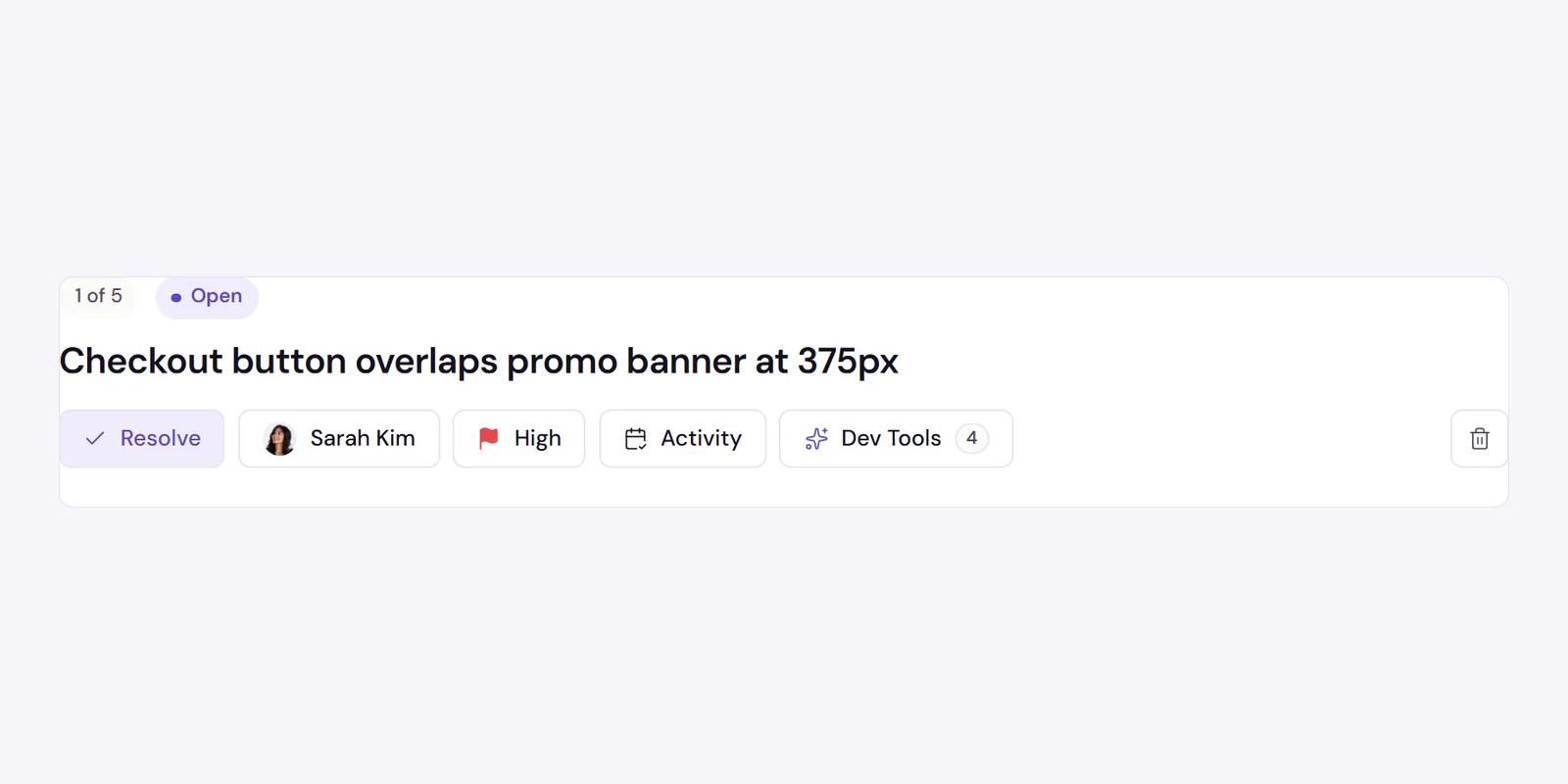
- Resolve.Each ticket is either Open or Resolved. Hit Resolve and it's done, with no confirmation step; Annote advances you to the next open ticket so you can work through a session quickly. Reopen the same way. You can also bulk resolve or reopen every ticket in a session at once.
- Assign. Open the assignee control to search your workspace members and assign the ticket, remove an assignee, or invite someone new.
- Prioritize.Set a ticket to High, Medium, or Low — or clear it. Priority is for triage; it doesn't change the Open/Resolved state.
Tags are how tickets are categorized — Bug, Feature Request, and so on — up to three per ticket. Members can also edit a ticket's title, description, tags, and screenshot inline. Deleting a ticket is owner-only and asks for confirmation.
Comments & discussion
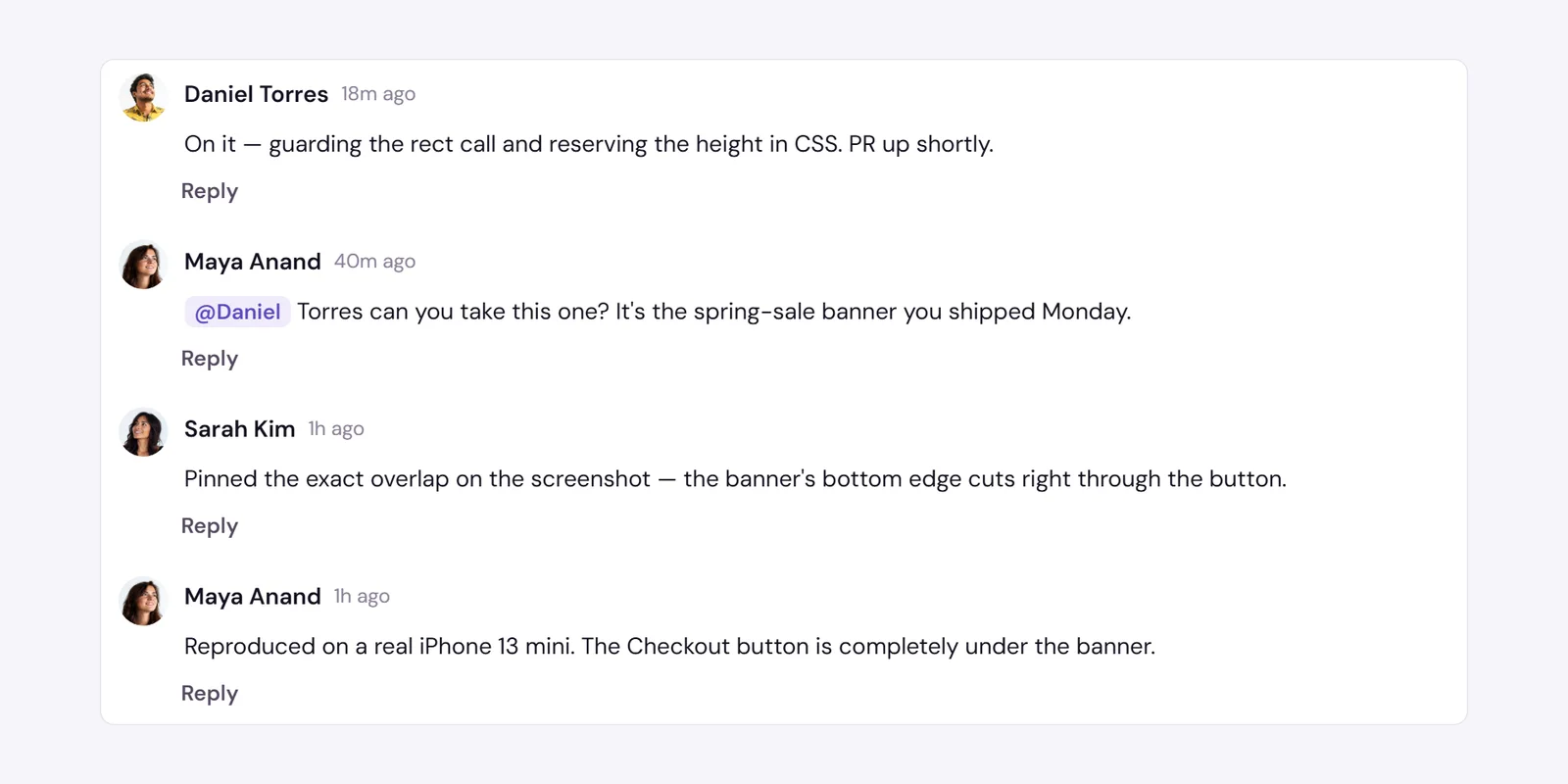
Each ticket has a comment thread for working things out with your team. The composer is rich text — Enter sends, Shift+Enter adds a line. You can @mention teammates from a picker, attach files (up to 5 per comment, 10MB each), react with emoji, reply one level deep, edit or delete your own comments, and pin a comment directly onto the screenshot to point at exactly what you mean.
Across the whole workspace, the Discussion inboxcollects open feedback threads in one place, organized into Inbox, Mentions, and Assigned to me. It's the fastest way to see what's waiting on you without opening every session. Resolved threads drop out of the inbox so it stays focused on what's still open.