Capturing Feedback
Start a session, choose how you capture, and see exactly what Annote attaches to every piece of feedback.
Starting & ending a session
Annote captures nothing until you start a session. The extension loads quietly on the pages you visit, but it sits inactive until you open it — so it isn't recording your browsing in the background.
To start, click the Annote icon in your browser toolbar. The Annote tray opens on the page, and if you're signed in, capture is armed. Click Start Session, choose Voice or Write, and you're recording.
Once a session is running, it follows you automatically. Switch tabs, click through a multi-step flow, navigate to another page — the tray and capture stay with you, so you can reproduce a bug across a whole journey without restarting anything.
Voice vs. Write
Annote gives you two ways to describe what's wrong. You pick per session, and you can switch between them anytime — from the tray header, the mode cards, or inside a capture.
Voiceis the faster one. Click an element, and recording starts automatically; you just talk. Speak naturally — “the trial button overlaps the footer on tablet” — and Annote transcribes it and turns your rough words into a structured ticket. The first time you use Voice, your browser asks for microphone permission; you'll need to allow it once. Voice notes can run up to three minutes, with a warning as you approach the limit.
Writeis the quieter one — useful in an open office, on a call, or anywhere a mic isn't practical. Click an element and type into the capture box. Enter sends, Shift+Enter adds a line break, Esc cancels.
What gets captured
When you file a piece of feedback, Annote attaches the technical evidence behind it — so a developer gets context, not guesswork. Here's what each part means.
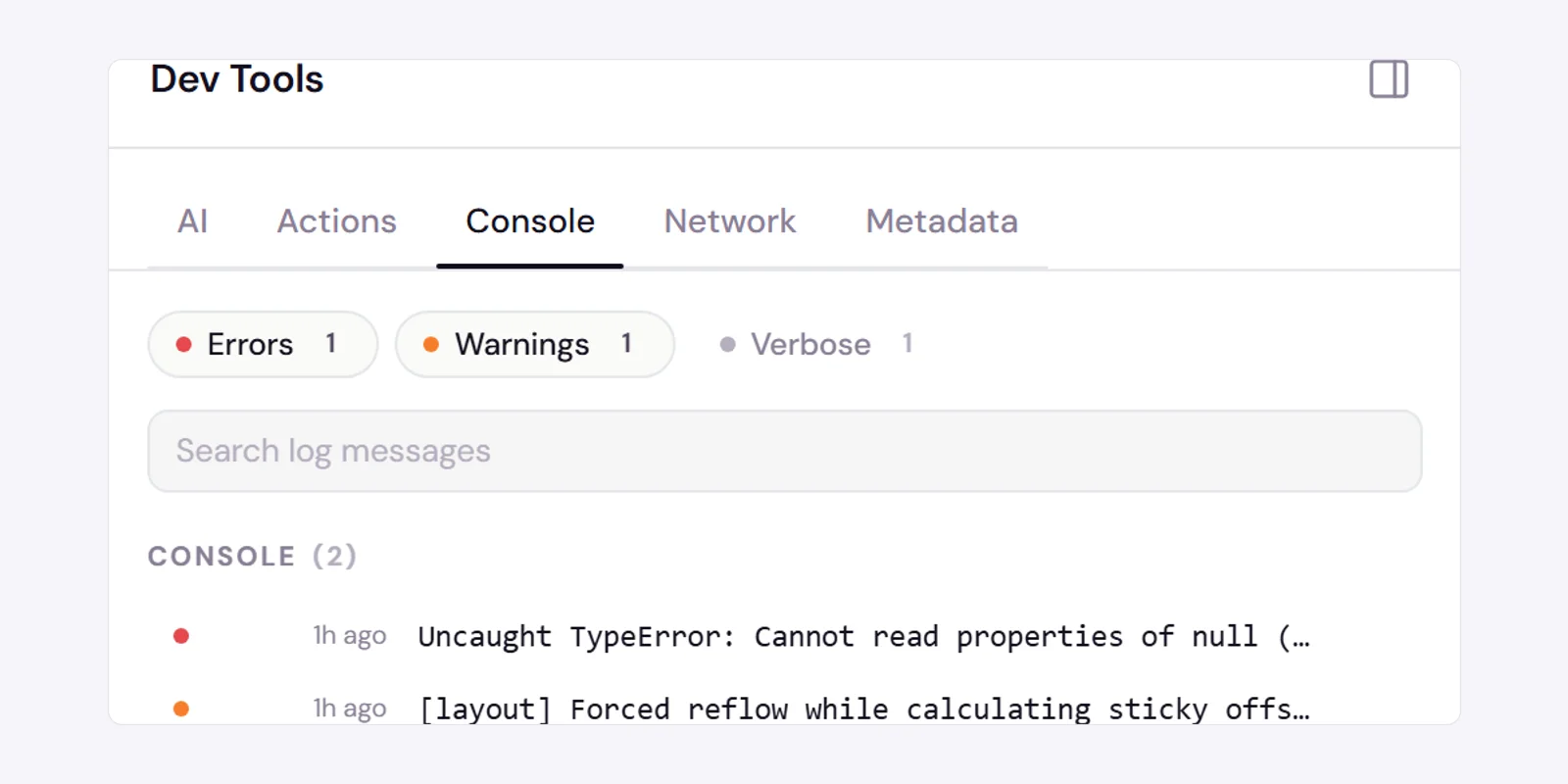
- Console logs and errors.The messages and errors your site's code prints — what a developer reads in the browser console — plus broken image or script load failures.
- Network requests.A record of the page's API calls: URL, method, status, timing, headers, and bodies — so you can see which call failed and what came back. Third-party traffic (analytics, CDNs, fonts) is excluded to keep the signal clean, and streaming or binary responses are summarized rather than stored in full.
- User actions.A timeline of what you did leading up to the bug — clicks, navigation, “edited a field,” submits, resizes. Each element gets a short description (its tag, id, classes, or label) so a developer knows exactly which control. Annote records which field you interacted with, never what you typed.
- Screenshot.A single image of the currently visible part of the browser tab at the moment you capture — not the full page, not your other tabs, and not your desktop. It's a screenshot, not screen-sharing.
- Voice.If you choose Voice, your microphone audio is recorded only while you're recording, and sent to a transcription service to turn your speech into text.
There are no per-stream on/off switches — starting and ending a session is the main control, alongside the privacy markers you can add to your own pages (see Privacy markers reference). Anything you do inside the Annote tray itself is never recorded.
Editing captures mid-session
You don't have to get a ticket perfect at capture time. Every ticket in a session can be edited before you send it on.
After you file a capture, a pin drops on the element and the box closes — so you can immediately click the next thing. The AI structures your note into a ticket in the background, and the pin updates to the real title when it's ready.
To refine one, click its card to open the editor. You can change the title, edit the description in a rich-text editor, add or remove tags, and expand the screenshot. When you open a ticket to edit it, the session auto-pauses so nothing new is captured while you're focused — and auto-resumes when you close the editor. You'll see a brief “Session paused / resumed” note so you always know which state you're in.