Admin & Workspace
Set up your workspace and team, manage plans and billing, and control your personal settings.
Workspace & team setup
Your workspace is created when you finish onboarding, and it's where your team and their feedback live. You manage it from Settings → Workspace.
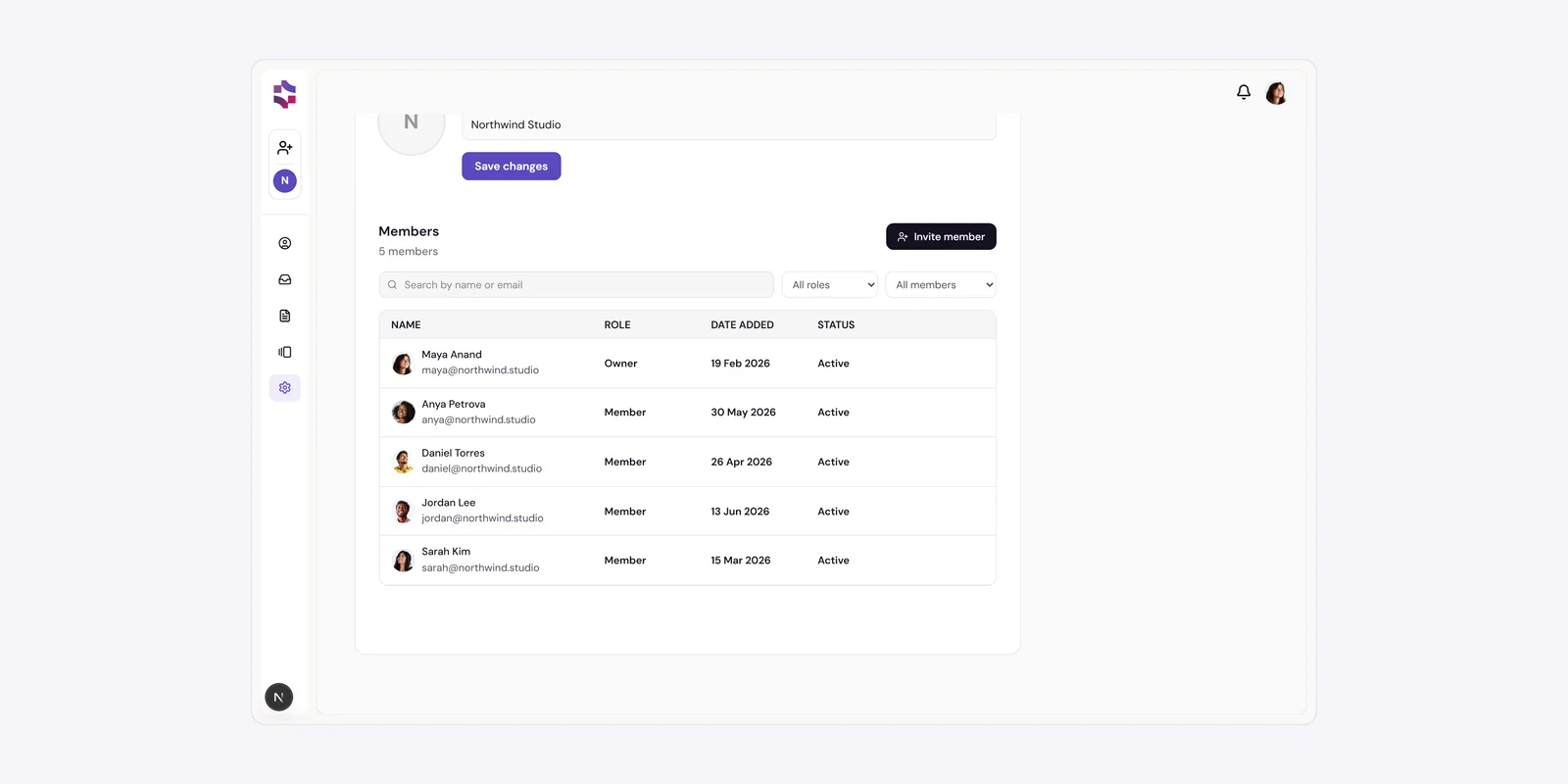
There are two roles: Owner and Member. Owners can edit the workspace name and logo, invite and remove members, manage invites, transfer ownership, and delete the workspace. Members can do everything else and can leave a workspace on their own. Roles are set at invite time and don't change afterward — the one exception is transferring ownership.
To invite someone, go to Settings → Workspace → Members → Invite member, enter their email, and send. Invitations are always sent as Member and expire after 30 days; pending invites show in the members table where you can resend or revoke them. You can belong to up to five workspaces and switch between them from the sidebar.
Plans & billing
Annote has three plans, managed under Settings → Billing.
- Starter is free, and a good way to try Annote on a QA pass. It includes a capped number of members and monthly tickets and the core voice-to-ticket capture and AI.
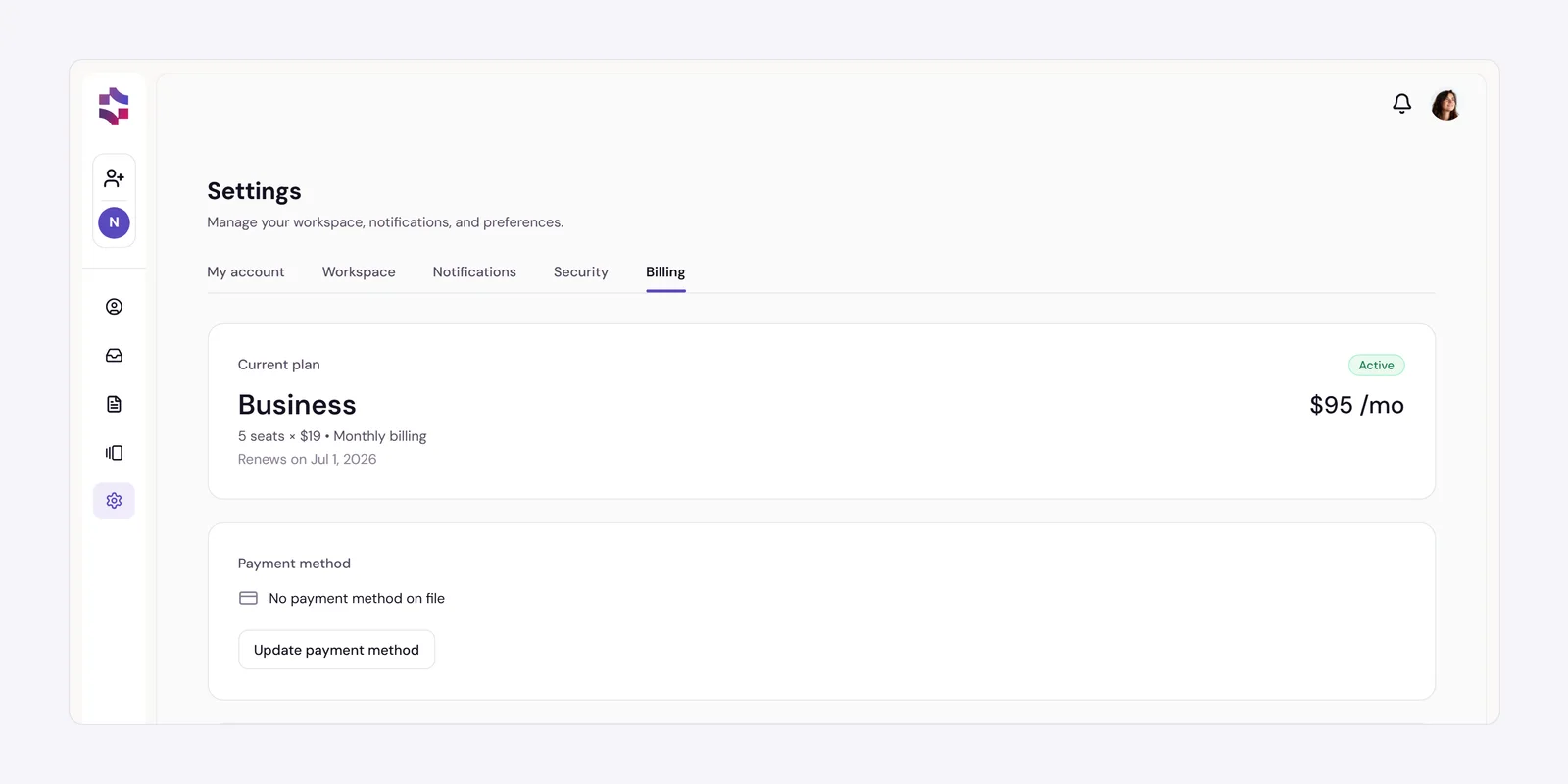
- Business is a per-seat monthly plan (with a discount for annual billing) and lifts the caps — unlimited members, sessions, and tickets — and adds custom branding with your own logo.
- Enterpriseis custom, for organizations that need SSO, advanced security controls, and dedicated support. It's arranged through sales rather than purchased in-app.
Upgrading is owner-only: from the Billing tab, choose your seat count and billing cycle and check out through Stripe; your plan activates once payment confirms. From the same tab you can update your payment method, download invoices, and cancel (which keeps access until the end of your billing period). A usage meter shows how many of this month's tickets you've used, turning amber as you approach the limit.
Account & settings
Your personal settings live under Settings, across a few tabs.
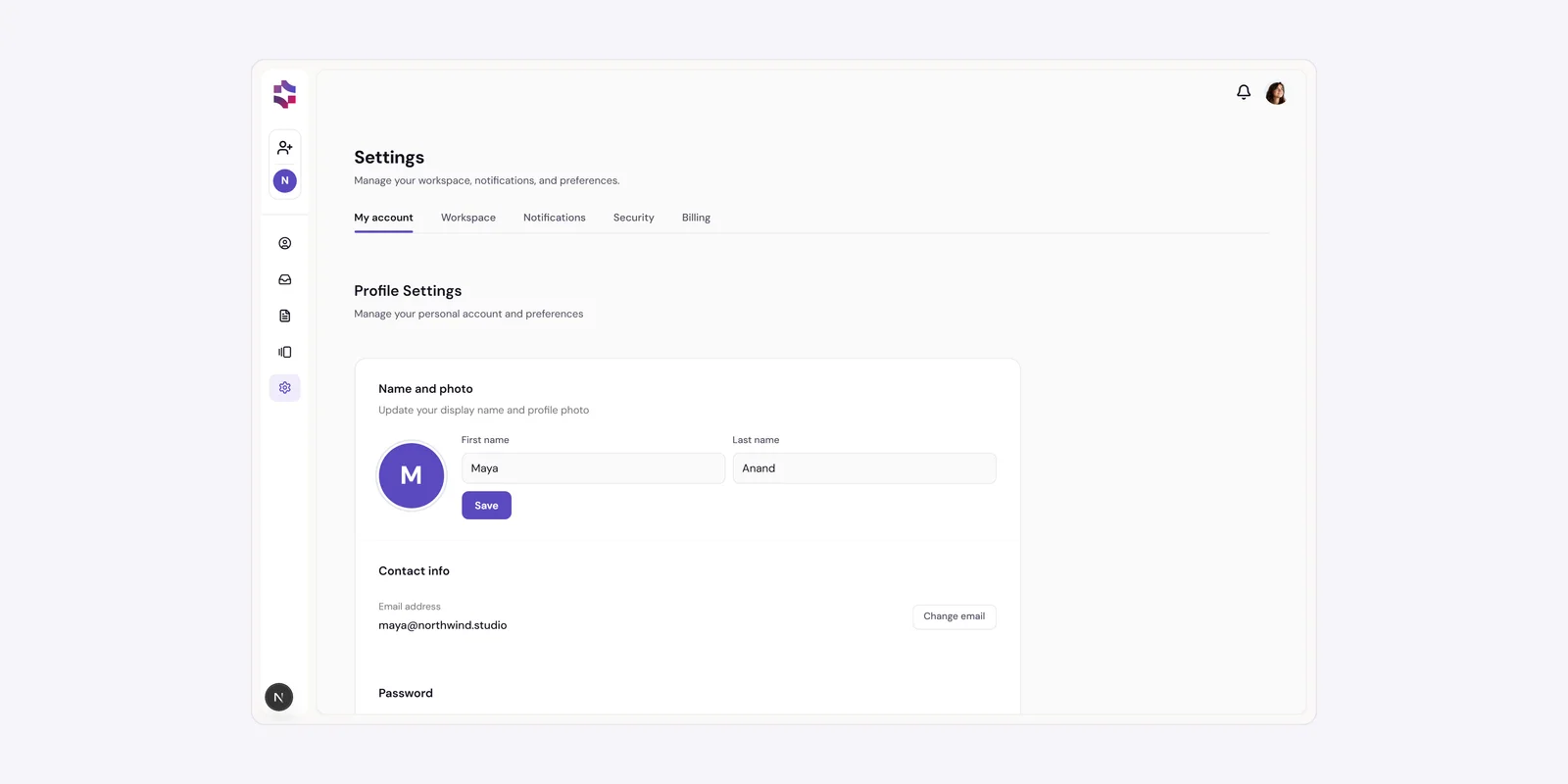
- My account is where you edit your name and avatar, change your email (with your current password — this is managed by Google if you signed in that way), reset your password, or delete your account.
- Notificationslets you control which emails you get — there's a toggle for activity notifications (comments, mentions, assignments, resolutions, and views) and one for product updates. These are email preferences and they save; transactional emails (like receipts and security messages) always send.
- Security is where you reset your password and, in a clearly-marked danger zone, transfer ownership or delete a workspace (owners) or leave a workspace (members) — each guarded by a type-to-confirm step.